I know most of you guys are in search of this kind of tutorial that will
go a long way to show you how to enable your Android Simple server,
psiphon, openvpn, tweakware,and jwp to connect to your laptop/pc through
WiFi Hotspot. Even how to connect your Etisalat social and that of MTN
bis internet from mobile devices to pc through wifi connection without
simple server being involved. If you are in such category, don't search
again because, the final solution is here for you. So today I will show
you how to get all your pc powered with server connection from your
mobile device with the help of a powerful software called pdnet+.
PdaNet+ is one of the top categorised Android apps of all time. It gives you access to share an internet connection from your mobile devices (Android) to PC or Tablet. It requires no root access to work on your Android, so that is to say, it works very well on all Android devices.

To have it, PdaNet+ go a long way in allowing your laptop/pc to connect online wirelesly via Simple server's network connection on your mobile devices ( Android ) That is to say, no need to set up any kind of proxy and that of port of any sort on your laptop browsers because, is a direct connection transfer from your Android device. To get it set up on your devices follow up the below steps.
Requirements For It To Get Configured are:
==>Your Android device
==>A laptop/PC
==>A USB cable
The Softwares Needed are as follow:
==>Pdnet+ for your Android device, download it Here
==>A FoxFi key pdnet+ for your Android, Get it Here
==>And finally, a Pdnet+ for your laptop/pc, get it Here
To share Your Android Vpn Network to Laptop/pc Using This App PdaNet+, follow the below steps accurately.
==>Step 1. Get the PdaNET+ you downloaded for your android device installed on your Android.
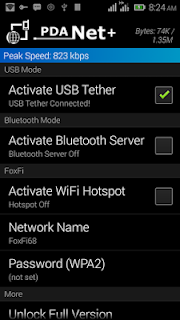
==>Step 2. Lunch the PdaNET+ app on your Android and now, Activate the USB TETHER you see in the pdaNet+. See screenshot below
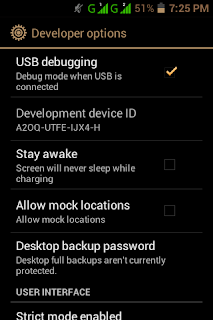
Note: Make sure your USB debugging is enabled on your Android. To do so, go to your Phone settings >> click on Developer options >> now enable it by ticking the small box you see for USB debugging. See screenshot below,
==>Step 3. Get PdaNET+ you downloaded for laptop/PC installed on your laptop.
==>Step 4. Now, Connect your Android device through a USB cable to your laptop
Note This: Make sure the particular Vpn you are using for this, be it simple serve, psiphon tweakware etc is already connected on your Android device. If not, get it connected.
==>Step 5. Open the PdaNet software installed on your laptop/pc, now, click on where you see "Connect internet", when you click it, the software will verify and authenticate the connection and by so doing, now it will display connected. That's it.

As you can see, you have successfully shared your VPN connection to your laptop, go ahead and enjoy connecting more VPN servers without proxy set up on your PC. Also for those that don't have modem for browsing, this can help until you get yours for your pc.
PdaNet+ is one of the top categorised Android apps of all time. It gives you access to share an internet connection from your mobile devices (Android) to PC or Tablet. It requires no root access to work on your Android, so that is to say, it works very well on all Android devices.
To have it, PdaNet+ go a long way in allowing your laptop/pc to connect online wirelesly via Simple server's network connection on your mobile devices ( Android ) That is to say, no need to set up any kind of proxy and that of port of any sort on your laptop browsers because, is a direct connection transfer from your Android device. To get it set up on your devices follow up the below steps.
Requirements For It To Get Configured are:
==>Your Android device
==>A laptop/PC
==>A USB cable
The Softwares Needed are as follow:
==>Pdnet+ for your Android device, download it Here
==>A FoxFi key pdnet+ for your Android, Get it Here
==>And finally, a Pdnet+ for your laptop/pc, get it Here
To share Your Android Vpn Network to Laptop/pc Using This App PdaNet+, follow the below steps accurately.
==>Step 1. Get the PdaNET+ you downloaded for your android device installed on your Android.
==>Step 2. Lunch the PdaNET+ app on your Android and now, Activate the USB TETHER you see in the pdaNet+. See screenshot below
Note: Make sure your USB debugging is enabled on your Android. To do so, go to your Phone settings >> click on Developer options >> now enable it by ticking the small box you see for USB debugging. See screenshot below,
==>Step 3. Get PdaNET+ you downloaded for laptop/PC installed on your laptop.
==>Step 4. Now, Connect your Android device through a USB cable to your laptop
Note This: Make sure the particular Vpn you are using for this, be it simple serve, psiphon tweakware etc is already connected on your Android device. If not, get it connected.
==>Step 5. Open the PdaNet software installed on your laptop/pc, now, click on where you see "Connect internet", when you click it, the software will verify and authenticate the connection and by so doing, now it will display connected. That's it.
As you can see, you have successfully shared your VPN connection to your laptop, go ahead and enjoy connecting more VPN servers without proxy set up on your PC. Also for those that don't have modem for browsing, this can help until you get yours for your pc.